What Vectis does with Egnyte
- One folder per customer. Each immediate subfolder under your configured clients root becomes a row on the matching customer’s Documentation section.
- Recent files, live. Click a folder card and the customer hub fetches the most recently modified files for that folder from the Egnyte API. File metadata only — no file contents are persisted, and every fetch is audit-logged.
- Never touches file content. Vectis lists files; opening them happens in Egnyte’s web UI via the Open link. We do not download, mirror, or render file bodies.
What you'll need
- Egnyte subdomain — the
<x>in<x>.egnyte.com - Key and Secret from an approved Egnyte developer-portal app
- Clients folder root — the absolute path inside your Egnyte tenant whose immediate subfolders are customer folders, e.g.
/Shared/Work/Acme/Clients
1. Register an Egnyte developer-portal app
- Sign in at developers.egnyte.com and create a new application. Pick a descriptive name like “Vectis”.
- Set the Redirect URI on the Egnyte app to the value Vectis shows when you open the Egnyte configure dialog — typically
https://<your-vectis-host>/api/integrations/egnyte/callback. The URI must match exactly, including the scheme and any trailing slash, or Egnyte refuses the redirect. - Enable the Egnyte Connect API permission and agree to the terms, then submit. Egnyte normally approves new apps within a business day; the API Keys table flips from Waiting to Active when approval is in.
- Copy the Key and Secret from the API Keys table once the app is approved. Egnyte calls the same value “Consumer Key” in approval emails and “client_id” in the developer docs — they are all the same thing.
2. Connect from Vectis
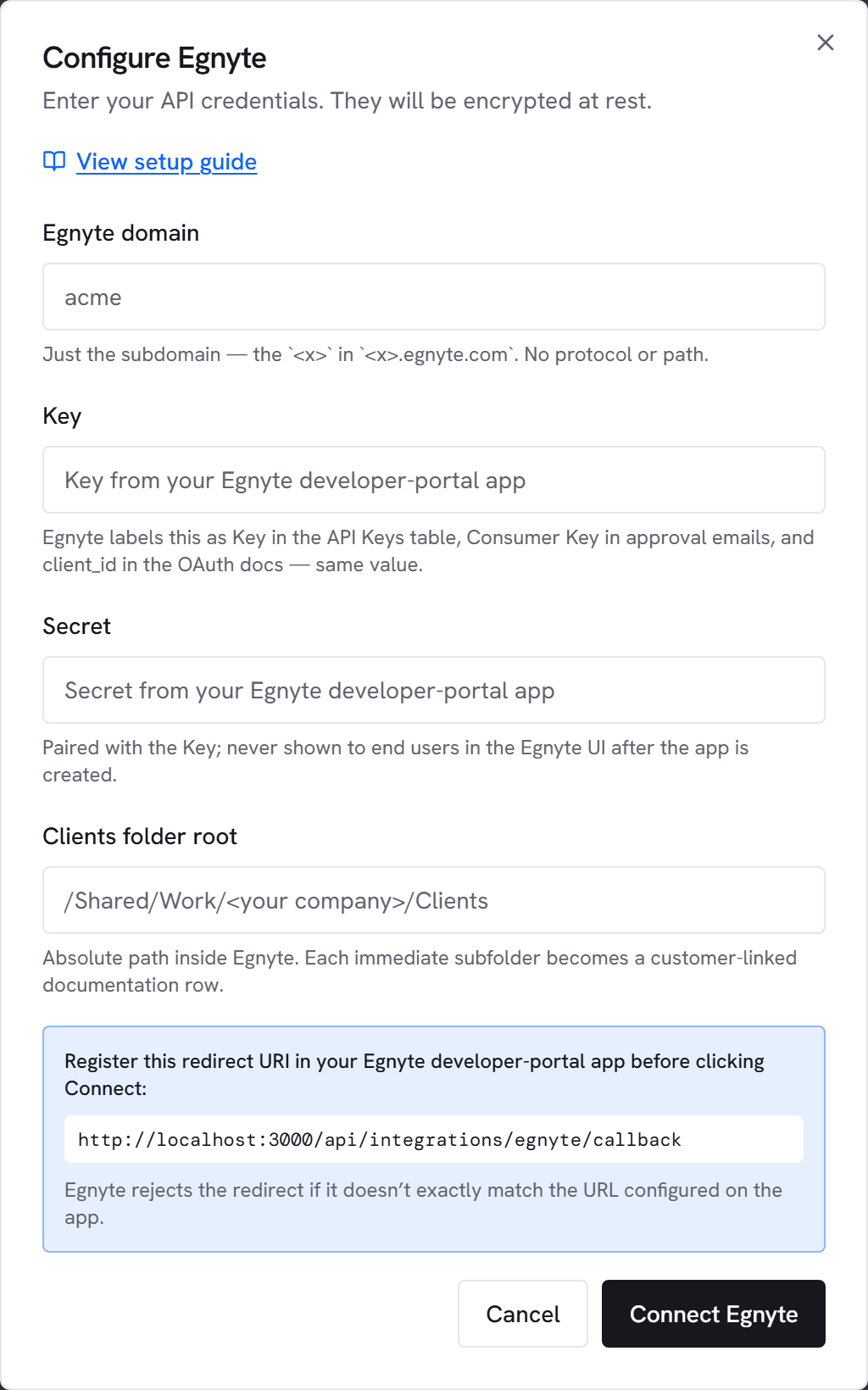
- Go to Admin → Integrations and click Configure on Egnyte.
- Enter the subdomain (no protocol or path), the Key, the Secret, and the clients-root path. The path must start with
/. - Click Connect Egnyte. Vectis redirects you to your Egnyte domain’s login screen; sign in (or stay signed in) and approve. Egnyte redirects back to Vectis with an OAuth code, which Vectis exchanges for an access token and a refresh token — both encrypted at rest.
- The first sync runs on the next sync cycle (or click Sync now). The sync lists subfolders under the clients root and creates one documentation row per subfolder, auto-matching by normalized name to your existing customers.
3. When folder names don't match customer names
If a folder name doesn’t match the PSA customer name — abbreviations, acquisitions, alternate spellings — the auto-match will miss. Pin the customer to a specific folder path by inserting a row into customer_egnyte_folder_overrides:
INSERT INTO customer_egnyte_folder_overrides
  (customer_id, folder_path)
VALUES
  ('<customer-uuid>', '/Shared/Work/Acme/Clients/Acme Holdings');
The next sync will pick up the override and link the folder to that customer regardless of name match.
What appears where
- Customer hub → Documentation section: a “Linked folders” group with one card for the customer’s mapped Egnyte folder. Click the card to expand recent files (top 25, modified-desc). Click Open in Egnyte to jump to the folder in Egnyte’s web UI.
- Inline preview: file metadata only — name, modified date, size. Opening a file always happens in Egnyte; we do not proxy file content.
Search and preview
Vectis maintains an index of file metadata — name, parent folder, size, modified date — for every file under each customer’s mapped folder. The index is rebuilt on every Egnyte sync and is what powers filename search (in the customer hub Documentation section’s search box, and in the global ⌘K palette when a customer page is open). The index never stores file contents.
Inline preview renders these formats without leaving Vectis:
- PDF (
.pdf) — rendered by your browser’s native PDF viewer in a sandboxed iframe. - Image (
.png,.jpg,.jpeg,.gif,.webp,.svg) — SVG is sanitized server-side before render. - Plain text (
.txt,.md,.csv,.log,.json) — first 2 MB shown verbatim. - Word (
.docx) — converted to HTML server-side via Mammoth and rendered in a strict-CSP iframe. - Excel (
.xlsx) — converted to a stacked HTML table per sheet with anchor-link navigation. Multi-sheet workbooks render every sheet in one scroll.
Anything else (PowerPoint, legacy .doc/.xls, archives, video) shows a “Preview not supported — Open in Egnyte” fallback. Files larger than 50 MB also fall through to the Egnyte web UI; this cap is intentional and applies before any conversion runs.
audit_log row attributing the action to the signed-in user.Tuning the index
By default Vectis walks each customer folder up to 8 directories deep and indexes up to 50,000 files per customer. If a customer tree is deeper or larger than that, the customer’s folder card surfaces a small “some files weren’t indexed” notice and search results are best-effort.
Both caps are tunable per integration via integration_configs.settings:
UPDATE integration_configs
   SET settings = jsonb_set(
     COALESCE(settings, '{}'::jsonb),
     '{walkDepth}', '12'::jsonb
   )
 WHERE provider = 'egnyte';
Same shape for fileCap. The next sync will pick up the new caps; the index will grow or shrink to match on the run after that.
Common errors
redirect_uri_mismatch — the redirect URI on your Egnyte app doesn’t exactly match the one Vectis sent. Open the configure dialog in Vectis, copy the redirect URI shown there, paste it into the Egnyte app, save, and try Connect again.
invalid_client — the Key or Secret is wrong, or the app is still in Waiting status. Check the Egnyte API Keys table; new apps take about a business day to be approved.
401 Unauthorized after working previously — the connection has been revoked at Egnyte. Click Reconnect in Admin → Integrations to re-authorize.
403 on the clients root — the connecting user doesn’t have permission to read that folder. Grant access to the service account in Egnyte and click Test again.
404 — either the subdomain is wrong or the clients root path doesn’t exist. Verify both in Egnyte’s web UI before retrying.