What you'll need
- Tenant URL — the host you log in at, e.g.
https://acme.halopsa.com - Client ID — from a HaloPSA OAuth application
- Client Secret — shown only once when the application is created
- Scope — optional; Vectis defaults to
all
1. Create an OAuth application
- In HaloPSA, open Config → Integrations → HaloPSA API → View Applications.
- Click New. Name it “Vectis”. Set Authentication method to Client ID and Secret (Services).
- On the Permissions tab, grant the
allscope (or the narrower read+edit on Tickets, Clients, Contracts, and Actions if your admin prefers a tighter footprint). - Save. HaloPSA shows the Client ID and Client Secret once — copy both now; the secret won’t be shown again.
If your HaloPSA install has Agent approval required, an admin needs to enable the application before Vectis can fetch a token.
2. Paste credentials into Vectis
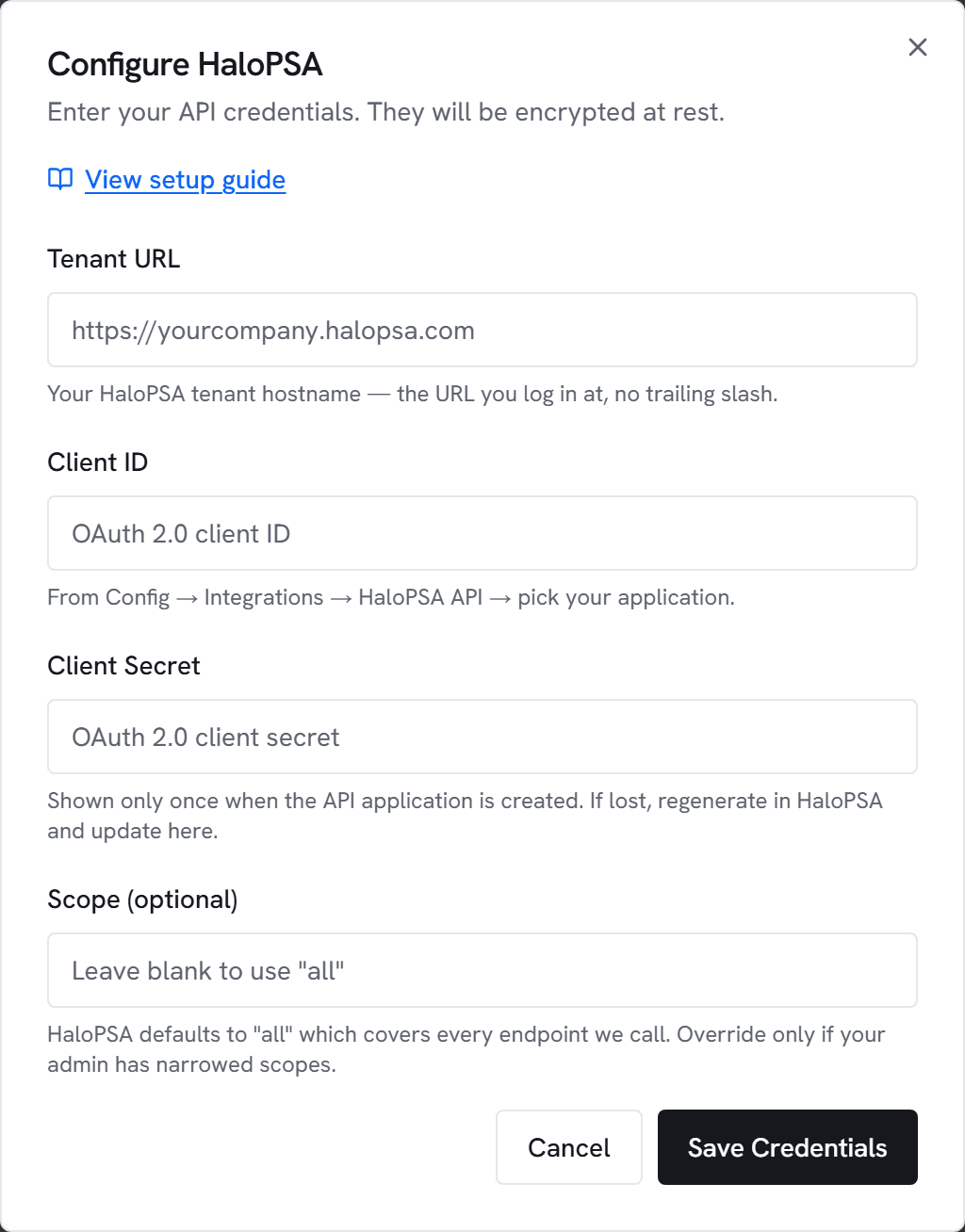
- Go to Admin → Integrations and click Configure on HaloPSA.
- Paste the tenant URL, client ID, and client secret. Leave Scope blank unless you narrowed scopes above.
- Click Test. You should see “Connected to <yourtenant>.halopsa.com” within a few seconds.
- Click Save.
3. Configure ticket defaults (for rules)
HaloPSA requires a ticket type on every new ticket. If you want rules to create tickets, fill in the Ticket defaults box under the HaloPSA card:
- Ticket Type ID: numeric ID from Config → Tickets → Ticket Types
- Status / Priority: optional numeric picklist IDs; rules can override per-action
Common errors
400/401 on token — Client ID or secret is wrong, or the tenant URL doesn’t match the install the client was created in.
403 Forbidden — The application’s scopes don’t include the endpoint we called. Widen to all or add read+edit on the missing resource.
404 on /auth/token — The tenant URL is wrong. Use the URL you log in at (no trailing slash, no /api).