Private beta
Kaseya VSA X support is doc-validated against api.vsax.net but awaiting first-customer onboarding to confirm a real tenant syncs cleanly. Email support to opt in.
Email support@mspvectis.com to request access. The setup steps below describe the intended self-serve flow once the connector exits beta.
What you'll need
- Tenant URL — the URL you log in at, e.g.
https://yourcompany.vsa.kaseya.net. No trailing slash. - Token ID + Token Secret — minted together in the VSA admin panel. Sent as HTTP Basic on every request:
Authorization: Basic base64(TOKEN_ID:TOKEN_SECRET). - VSA Version — Vectis supports
vsax(also marketed as VSA 10), the current SaaS product. On-prem VSA 9 isn’t supported today.
1. Mint the API token
- In Kaseya VSA, go to Settings → API Access → Tokens.
- Click Generate token. Name it “Vectis” so you can identify + rotate it later without affecting other integrations.
- Assign a service role with read access to Organizations, Devices, and Notifications. Vectis is read-only against VSA X — no write scopes are required.
- Configure the token security options as appropriate: start / expiration dates, optional whitelisted IP addresses, optional per-organization scoping. Vectis recommends 90-day rotation.
- Save. Copy both the token ID and token secret immediately — Kaseya won’t show the secret again. To rotate, regenerate the token and paste the new pair into Vectis.
2. Find your tenant URL
Your tenant URL is the address you log into Kaseya at. For the Kaseya-hosted SaaS product it looks like:
https://acme.vsa.kaseya.net— most commonhttps://acme.kaseya.com— legacy Kaseya-hosted SaaS
Don’t include a trailing slash. Vectis normalises the URL but operator typos that double-slash the path will surface as 404s on every request.
3. Paste credentials into Vectis
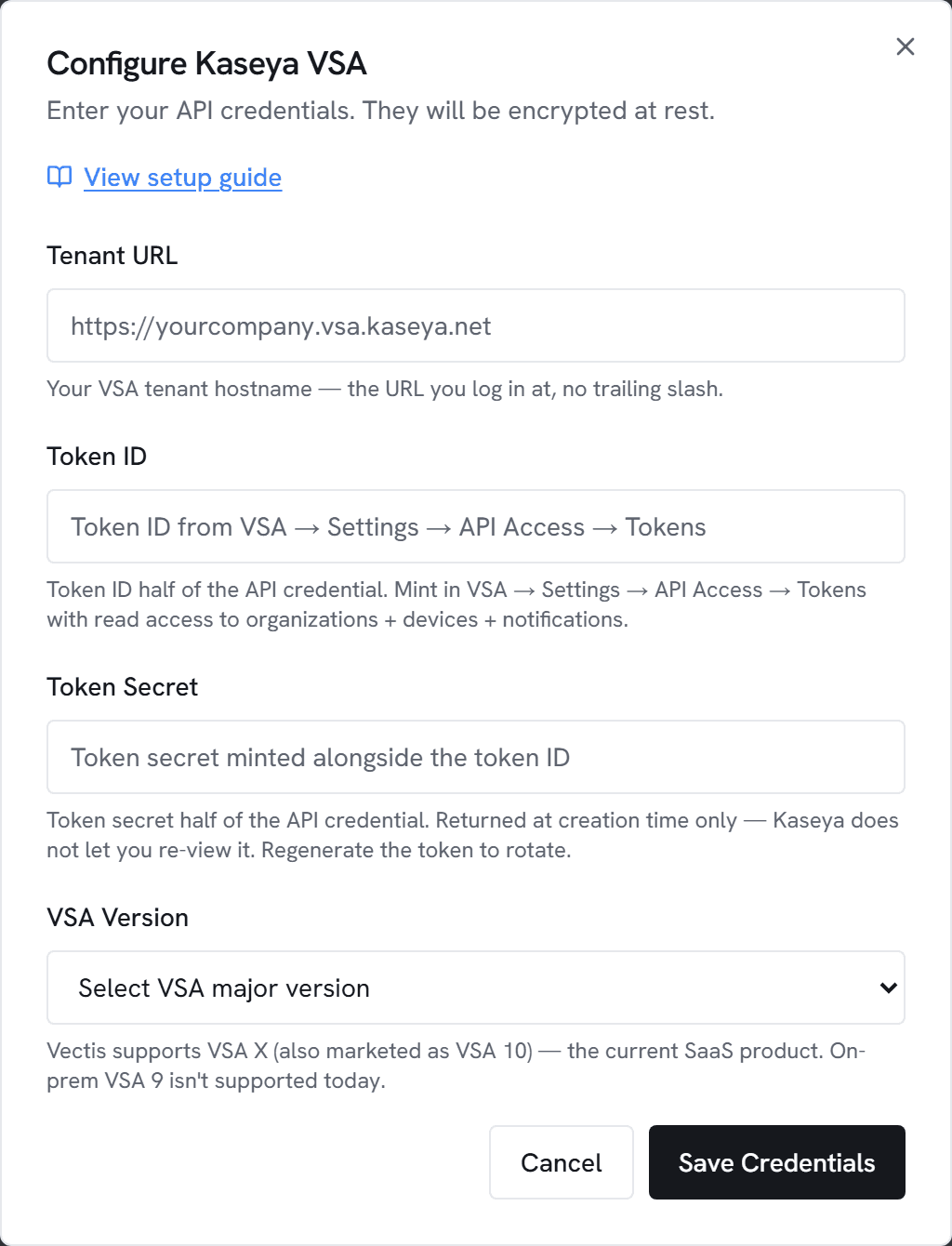
- Go to Admin → Integrations and click Configure on Kaseya VSA.
- Paste the Tenant URL, Token ID, Token Secret, and select your VSA Version (
vsax). - Click Test. You should see “Connected to Kaseya VSA” with an organization count.
- Click Save, then Sync now.
4. Match organizations to your PSA customers
After the first sync, Vectis shows a list of Kaseya organizations and tries to fuzzy-match each to one of your ConnectWise / Autotask / HaloPSA customers by name. Anything it can’t auto-match appears as unlinked — drop down and pick the right customer, or mark “Keep separate” for non-MSP-customer orgs (internal, demo, etc.).
Matching is required for the account hub to show Kaseya devices + notifications next to PSA tickets for the same customer. Until a Kaseya org is linked to a PSA customer, its devices appear only in the RMM section.
5. What the sync populates
Each Kaseya sync writes the same tables NinjaOne writes, so the customer hub + rules engine work without configuration:
- Customer hub — devices + notifications per organization
- Rules engine — Kaseya notifications become rule triggers; templates can open tickets in your PSA. Vectis does not write back to Kaseya — VSA X documents no acknowledge or close REST verb on its notifications surface.
/api/v3/assets endpoint that’s too tight for tenant-wide sweeps. NinjaOne remains the recommended source for device posture data when available.Common errors
401 Unauthorized — The token ID or secret is wrong, or the token has been revoked. Re-mint in VSA → Settings → API Access → Tokens and update both fields here.
403 Forbidden — The token’s service role lacks read scopes for organizations, devices, or notifications. Edit the role and retest.
404 Not Found — Tenant URL is wrong, or the tenant is on the legacy on-prem VSA 9 surface (different REST shape). Vectis supports VSA X / VSA 10 only.
429 Too Many Requests — Kaseya rate-limited you. The Python ETL paces requests below the published 3,600/hour ceiling, but a manual sync triggered alongside the scheduled cron can briefly trip it; wait a minute and retry.
Connection timed out — Check firewall/VPN. Kaseya’s API IPs need to be reachable from wherever Vectis is running.