What you'll need
- Dashboard account at
dashboard.meraki.comwith access to your customer organizations - API key — generated from the user profile or the API & Webhooks page
- Regional base URL — only if you’re on a non-US cluster (Canada, China, India, FedRAMP). The default is
https://api.meraki.com/api/v1.
1. Enable API access on the user account
API access is per-user and disabled by default. Enable it before the “Generate API key” button appears.
- In
dashboard.meraki.com, click your avatar (top-right) and open My Profile. - Scroll to API access and enable it for the account.
2. Generate the API key
Two paths land in the same place — pick whichever is closer to where you already are in Dashboard.
- From My Profile: stay on the same screen from step 1 and click Generate API key.
- From the org: go to Organization → Configure → API & Webhooks, open the API keys and access tab, and click Generate API Key.
- Copy the key immediately. Dashboard never stores it in plain text — if you lose it, revoke and regenerate.
3. Paste credentials into Vectis
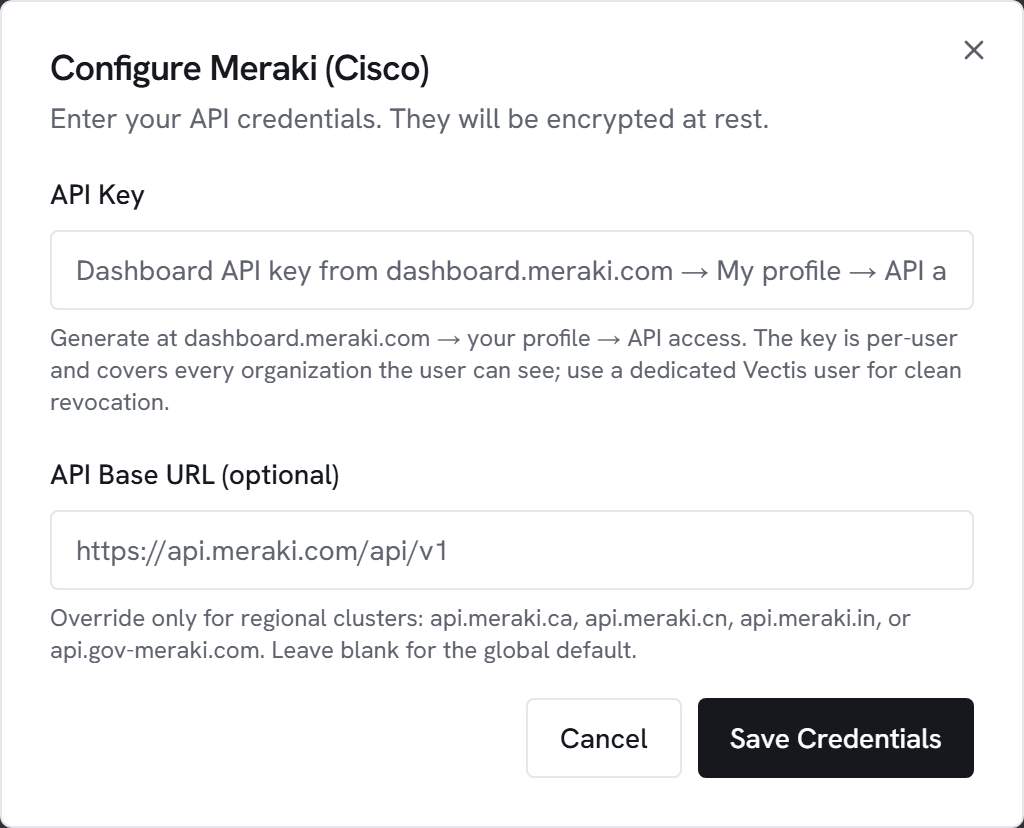
- Go to Admin → Integrations and click Configure on Meraki (Cisco).
- Paste the key into API Key.
- Only fill API Base URL if you’re on a regional cluster. Allowed hosts:
api.meraki.com,api.meraki.ca,api.meraki.cn,api.meraki.in,api.gov-meraki.com. - Click Test. You should see “Connected to Meraki Dashboard” with the number of organizations visible to the key.
- Click Save, then Sync now.
4. Map networks to Vectis customers
After the first sync, a Meraki network mapping panel appears under the integration tile. Each row is one (org, network) pair Vectis discovered. Pick the right Vectis customer for each row, or leave it unmapped to hide that network.
What gets synced
- Organizations the API key has access to
- Networks per organization with device count and product types
- Devices per network — MX firewalls, MS switches, MR access points, MV cameras, MT sensors — with model, serial, status, last-reported, firmware
- Uplink statuses (primary + cellular failover) per device
- Uplink loss + latency samples per device for ISP performance trending
The Dashboard API is treated as read-only here. Vectis never writes back to Meraki.
Common errors
401 Unauthorized — the key was revoked, mistyped, or copied with surrounding whitespace. Re-copy from Dashboard. Note that the key inherits the user’s permissions: if the user was removed from an org, the key loses access too.
403 Forbidden — the user can see the organization listing but doesn’t have permission for a specific network. Grant the user the right org/network access in Dashboard.
429 Too Many Requests — Meraki rate-limits to 10 calls per second per organization. Vectis paces sync, but another integration sharing the same key can trigger this.
SSO blocked from generating keys — create a local-auth Dashboard user dedicated to Vectis (see the warn callout above), grant it the required org access, mint the key from that account, then store the credentials securely.