What Vectis does with Microsoft 365
- Syncs email metadata from the technician mailboxes you list — sender, recipients, subject, a short preview, and the timestamp. Message bodies are neverstored in Vectis.
- Syncs calendar events where a customer contact is an attendee — past week and upcoming 14 days.
- Filters by customer domain — any message that doesn’t touch a known customer’s email domain is dropped before it ever reaches the database. Vectis does not scrape your whole mailbox.
- Fetches full message bodies on-demand, only when a user clicks to expand one, and writes every fetch to the audit log.
- Pulls MFA registration state per user + whether they sit in a privileged directory role. Used by the security posture page + compliance evidence packs. Only the method types a user registered (e.g. authenticator, FIDO2) are stored — never the devices themselves or any secrets.
- Reads Microsoft Secure Score (requires M365 Business Premium or higher) — daily posture score, 30-day trend, and top improvement actions per customer. Visible on the customer hub → Integrations → Microsoft Secure Score card. Requires
SecurityEvents.Read.Allon the publisher app (granted via the “Update permissions” button on the M365 integration card). - Reads Conditional Access policies (requires Azure AD P1, included in M365 Business Premium or higher) — lists all CA policies, detects whether an enabled policy enforces MFA for all users, and surfaces the result as an MFA-enforcement badge per customer. Visible on the customer hub → Integrations → Conditional Access card. Requires
Policy.Read.Allon the publisher app (included in the Phase 339 permission expansion — click “Update permissions” if you consented before that update).
What you'll need
- Microsoft 365 / Entra ID admin access (technically: Global Admin, or Application Administrator + Privileged Role Administrator)
- A list of technician mailbox UPNs to sync
1. Register an Entra ID app
- Sign in to
entra.microsoft.comas a tenant admin. - Open Identity → Applications → App registrations and click New registration.
- Name it “Vectis”, leave supported account types as “Single tenant”, and skip the redirect URI (not needed for app-only auth).
- On the new app’s Overview page, copy the Application (client) ID and Directory (tenant) ID — you’ll paste both into Vectis.
2. Grant the six application permissions
- On the app, open API permissions → Add a permission → Microsoft Graph → Application permissions (not Delegated).
- Communications (email + calendar context):
Mail.Read— read mail in all mailboxes (the mailbox allow-list on the Vectis side is what actually scopes which ones we query)Calendars.Read— read calendars in all mailboxesUser.Read.All— resolve UPNs / display names
- Security posture (MFA + privileged roles):
Reports.Read.All— pull the user-registration-details report (MFA / passwordless capability per user)UserAuthenticationMethod.Read.All— read which authentication methods a user has registered (method types only, no secrets)Directory.Read.All— enumerate directory roles to flag privileged accounts
- Back on API permissions, click Grant admin consent for <tenant>. The status column must turn to “Granted for” on all six — without this step, every Graph call 403s.
3. Create a client secret
- On the app, open Certificates & secrets → Client secrets → New client secret.
- Description: “Vectis”. Expiry: pick a timeline you’ll remember to rotate against — 12 or 24 months is typical. Set a calendar reminder now for ~2 weeks before expiry.
- Click Add. Copy the Value (not the Secret ID) immediately — it is shown exactly once. If you miss it, delete the secret and create a new one.
4. Paste credentials into Vectis
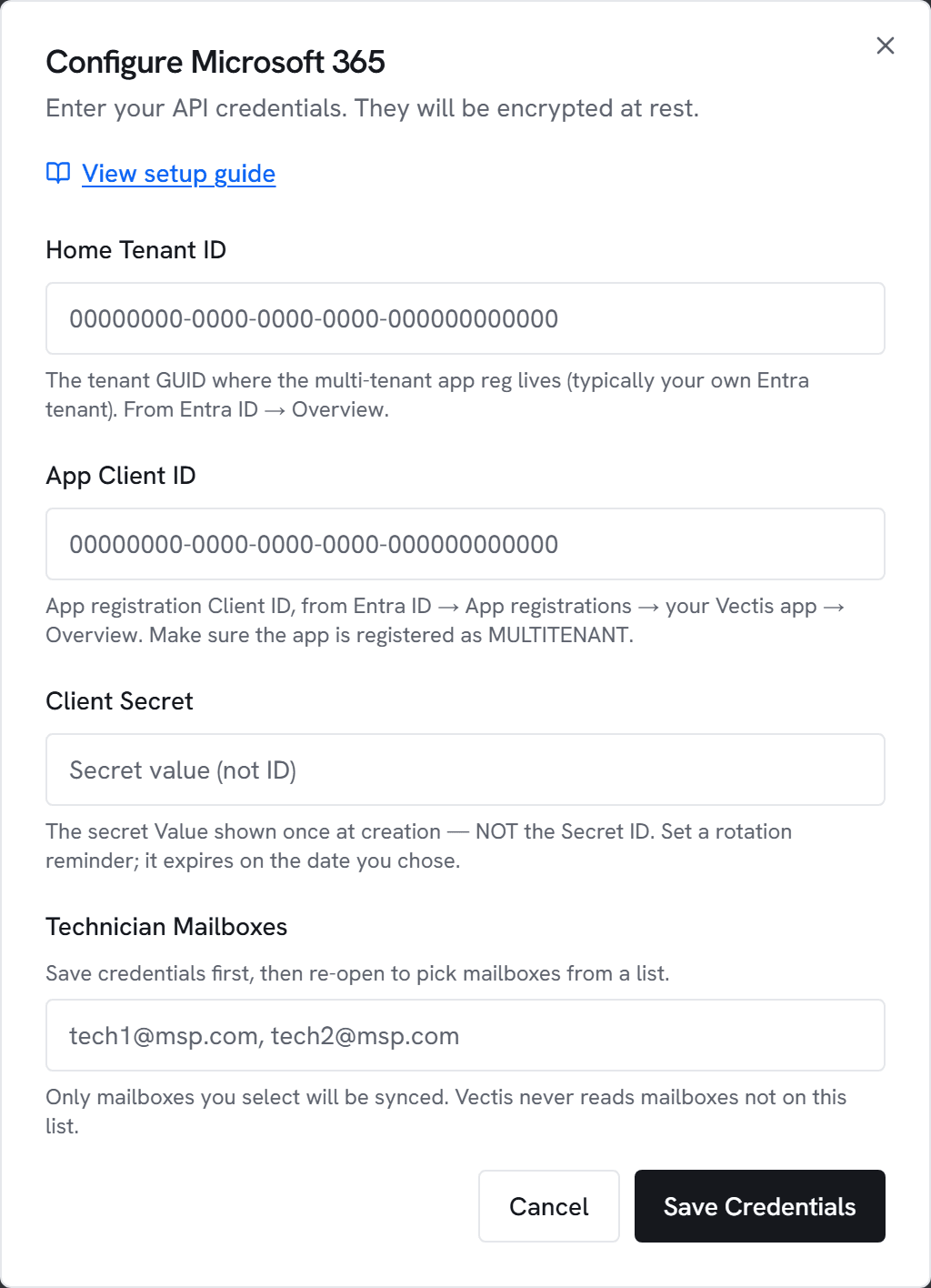
- Go to Admin → Integrations and click Configure on Microsoft 365.
- Paste the Tenant ID, App Client ID, and Client Secret Value.
- In Technician Mailboxes, enter a comma-separated list of UPN-style emails (e.g.
jane@msp.com, jack@msp.com). These are the MSP-staff mailboxes Vectis will sync context from. - Click Test. You’ll see “Connected to <tenant> — N mailboxes configured” within a few seconds.
- Click Save, then trigger an initial sync.
What appears where
- Customer hub → Integrations → Secure Score card: current score ring (color-coded green/amber/red), 30-day trend sparkline, and top 3 not-implemented improvement actions with point values.
- Customer hub → Communications section: recent emails (last 14 days) and upcoming calendar events, each expandable to a full body that’s fetched on-demand.
- Customer hub → Security posture: MFA coverage %, privileged-account MFA %, and the list of privileged users (Global Admin, Exchange Admin, etc.) for that customer’s tenant. Customer match is by UPN domain.
- /security cross-customer rollup: per-signal averages including MFA + privileged MFA across every customer the M365 connector observed.
- Compliance evidence packs: MFA / privileged MFA populate the relevant CMMC / HIPAA / SOC 2 control rows with real numbers + evidence.
- RBAC: admins see all matched communications. Members and viewers see only the ones where their own email is in the participant list. No elevation path — RBAC is enforced server-side before any body is fetched.
- Audit log: every full-body fetch writes a row with the user ID + message ID.
Microsoft 365 security posture — go to Vectis, not the admin center
Beyond inline email + calendar context, Vectis builds a single prioritized Microsoft 365 view per customer tenant — and a book-wide roll-up at Microsoft 365 (sidebar → Operate). Every identity gap, wasted license, hardening issue, and live threat is ranked worst-first, each with the action to take. Flip the book view from “by customer” to “by finding” to see which issue is most widespread and work-list the fix across every affected tenant at once.
- License reclamation + right-sizing — paid seats that are disabled or haven’t signed in, plus seats over-licensed for what they actually use, each with the cheaper plan that still covers them and real prepaid-vs-used dollars.
- MFA coverage, tenant hardening & Secure Score fixes — how each tenant actually enforces MFA (Security Defaults, Conditional Access, or per-user), a pass/warn/fail hardening checklist, and the ranked top fixes to raise the Secure Score.
- Compromised-mailbox & threat signals — inbox rules that auto-forward mail to external addresses (the top sign of a hijacked mailbox) and active Microsoft Defender alerts inline.
- Directory change timeline & standing admin — a 7-day feed of who created users, granted admin roles, or consented apps (brand-new risks get a New badge), with permanent Global Admins separated from just-in-time (PIM-eligible) ones.
- Service health & SharePoint exposure — active Microsoft 365 service incidents and the tenant-wide SharePoint external-sharing policy surfaced as findings.
ServiceHealth.Read.All, MailboxSettings.Read, SecurityAlert.Read.All, SharePointTenantSettings.Read.All). Grant them in one click with Update permissions on the Microsoft 365 card — any check whose scope isn’t yet consented shows a quiet “needs access” nudge instead of failing. Vectis never writes back: it reads posture and surfaces the action for you to take.Common errors
401 Unauthorized — Client secret is wrong, or it’s past its expiry date. Check Certificates & secrets for the expiry; rotate if needed.
403 Forbidden — Either the three API permissions are missing, OR tenant-wide admin consent wasn’t granted. Open Entra ID → App registrations → Vectis → API permissions and confirm all three show “Granted for <tenant>”.
404 on /organization — Tenant ID doesn’t resolve. Double-check you’re pasting the Directory (tenant) ID, not a subscription or user GUID.
“Enter at least one technician mailbox” — The mailbox allow-list is required. Vectis will not sync every mailbox in the tenant by design.