What you'll need
- UniFi Site Manager account at
unifi.ui.comwith at least one console adopted under it - API key — generated from your UI account profile
1. Generate the API key
- Sign in to
unifi.ui.comwith the UI account that owns your customer consoles. - Click your profile avatar (top-right) and open API — on the early-access UI it lives at Settings → API Keys.
- Click Create API Key. Give it a name like “Vectis” so you can revoke it later without disrupting other tools.
- Copy the key immediately. It’s only displayed once — if you lose it, you’ll have to revoke it and mint a new one.
2. Paste the key into Vectis
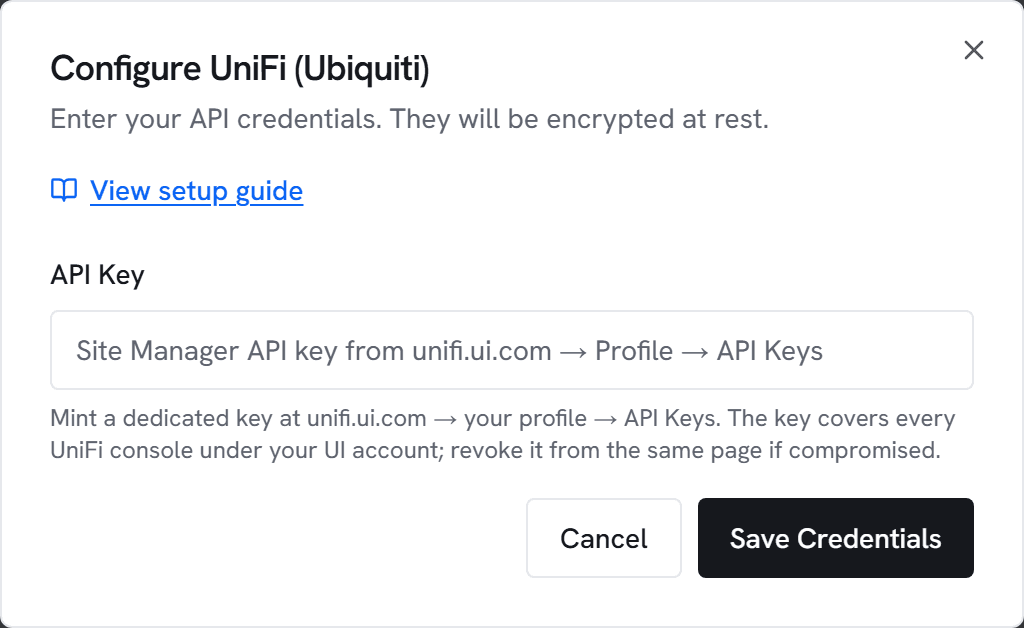
- Go to Admin → Integrations and click Configure on UniFi (Ubiquiti).
- Paste the API key into API Key.
- Click Test. You should see “Connected to UniFi Site Manager” with the number of consoles visible to the key.
- Click Save, then Sync now.
Vectis sends the key as X-API-Key on every Site Manager call — the same header pattern UniFi’s official SDK uses.
3. Map sites to Vectis customers
After the first sync, a UniFi site mapping panel appears under the integration tile. Each row is one (host, site) pair Vectis discovered through your account. Pick the right Vectis customer for each row, or leave it unmapped if it shouldn’t surface (e.g. your own home network on the same UI account).
What gets synced
- UniFi consoles (hosts) under your Site Manager account
- Sites per host with device count and online %
- Devices per site — firewalls, switches, access points, gateways, cameras — with model, status, last-seen, firmware
- Per-site ISP performance metrics (latency p95, uptime %) rolled up over the last 24 hours
The Site Manager API is read-only, so Vectis never writes back to UniFi.
Common errors
401 Unauthorized — the key was revoked or mistyped. Re-copy from unifi.ui.com → profile → API Keys.
403 Forbidden — the key’s account doesn’t have access to the console it’s asking about. Adopt the console under the same account or generate the key from an account that already owns it.
429 Too Many Requests — Site Manager rate-limits per key. Vectis paces sync so this should be rare; if you see it, another tool is likely sharing the same key.
No sites visible after Test — the account owns no adopted consoles. Adopt at least one customer console first; the key only sees what the account does.