What you'll need
- Aruba Central account with System Apps & Tokens access (admin user) or My Apps & Tokens (regular user)
- Regional API Gateway URL — visible at the top of the API Gateway page once you’re signed in. The host varies by cluster (e.g. US-2 lives at
apigw-prod2.central.arubanetworks.com). - Client ID + Client Secret — issued together when you create an OAuth application
- Access Token + Refresh Token — minted from the same screen after the application is saved
developer.arubanetworks.com. The setup screens described below are inside Central itself, not the developer hub.1. Create the OAuth application
- In Aruba Central, click Account Home in the top-right account menu.
- Under Global Settings, click API Gateway.
- Pick the right tab: System Apps & Tokens if you’re an admin creating an app the whole MSP team will use, or My Apps & Tokens for a personal app scoped to your user.
- Click + Add Apps & Tokens.
- Fill the dialog: name it “Vectis”, leave Redirect URI blank (Vectis uses the refresh-token flow, not redirect-based auth), and pick an Application Type appropriate to your tenant.
- Click Generate. Aruba issues the Client ID and Client Secret — copy both now.
2. Mint the access + refresh token pair
- Back on the API Gateway page, find your new app in the table and open the row’s actions.
- Click View Tokens, then Generate New Token.
- Aruba returns a JSON pair containing
access_token(2-hour lifetime) andrefresh_token. Copy both.
POST /oauth2/token?grant_type=refresh_token on every 401 — you should rarely need to mint a new pair by hand.3. Paste credentials into Vectis
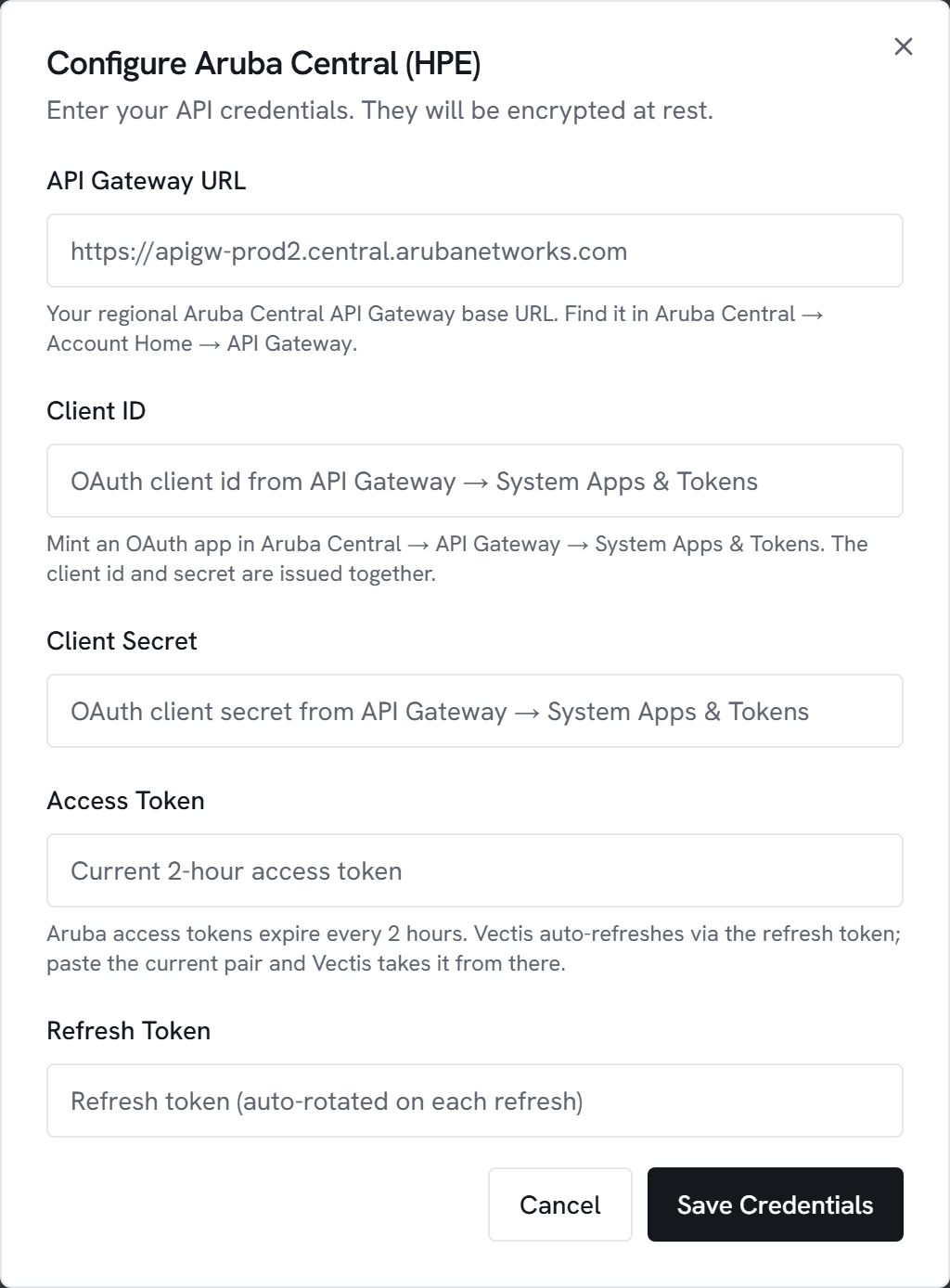
- Go to Admin → Integrations and click Configure on Aruba Central (HPE).
- API Gateway URL: paste your regional cluster URL (e.g.
https://apigw-prod2.central.arubanetworks.com). No trailing slash. - Client ID + Client Secret: paste the pair from step 1.
- Access Token + Refresh Token: paste the pair from step 2.
- Click Test. You should see “Connected to Aruba Central” with the number of sites visible to the app.
- Click Save, then Sync now.
4. Map sites to Vectis customers
After the first sync, an Aruba Central site mapping panel appears under the integration tile. Each row is one site Vectis discovered. Pick the right Vectis customer per site, or leave a row unmapped to hide it.
What gets synced
- Sites discovered through
GET /central/v2/sites - Devices per site through
GET /platform/device_inventory/v1/devices— gateways, switches, access points — with model, serial, status, firmware - Site-to-customer mappings drive everything that reaches the customer hub or customer portal
The integration is read-only. Vectis never writes back to Aruba Central.
Common errors
401 Unauthorized after token refresh — the refresh token rotates on every successful refresh. If you ran a refresh outside Vectis (e.g. with the same client_id from a script), the older refresh token in Vectis is now invalid. Mint a fresh pair from View Tokens and re-save in Admin → Integrations.
403 Forbidden — the OAuth app type or scope doesn’t cover the resource. In MSP-mode tenants, picking the wrong app type is the usual cause. Recreate the app with a type that includes the resources you need.
429 Too Many Requests — Aruba rate-limits per app. Vectis paces sync; if it persists, another integration using the same client_id is likely sharing the budget.
“Cannot generate a new token” — you tried to mint a fresh pair within 30 minutes of the last one for the same client_id. Wait, or use the existing refresh token via the API instead of generating a new pair.
Wrong API Gateway URL — Vectis only accepts hostnames under .central.arubanetworks.com (and .central.arubanetworks.com.cn for the CN cluster). Copy the URL from the API Gateway page header rather than typing it.