What you'll need
- API Key — generated from the Atera admin panel
1. Generate an API key
- In Atera, click your name in the bottom-left corner and go to Admin.
- In the left sidebar, click API.
- Click Generate API Key (or use an existing key if you have one dedicated for integrations).
- Copy the API key. It’s shown in full on this page and can be re-copied later, unlike OAuth secrets.
2. Paste the key into Vectis
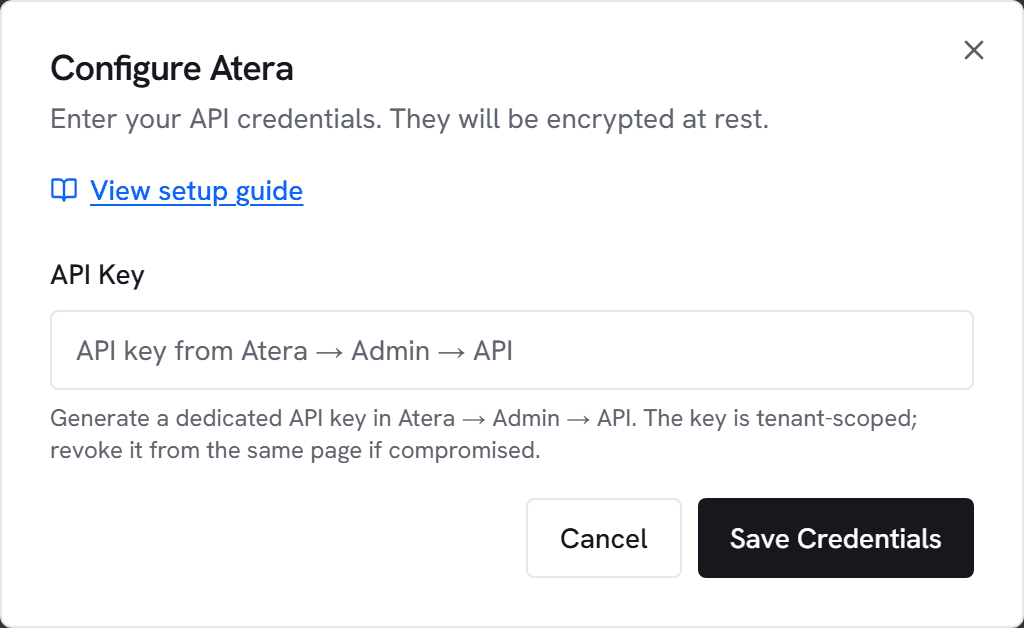
- Go to Admin → Integrations and click Configure on Atera.
- Paste your API Key.
- Click Test. You should see “Connected to Atera” with a customer count.
- Click Save, then Sync now.
3. Match customers to your PSA
After the first sync, Vectis shows a list of Atera customers and tries to fuzzy-match each to one of your ConnectWise / Autotask / HaloPSA customers by name. Anything it can’t auto-match appears as unlinked — drop down and pick the right customer, or mark “Keep separate” for non-MSP-customer entries (internal, demo, etc.).
Matching is required for the account hub to show agents + alerts next to tickets for the same customer. Until an Atera customer is linked to a PSA customer, its agents appear only in the RMM section.
Common errors
401 Unauthorized — The API key is wrong or has been revoked. Re-copy from Atera → Admin → API.
403 Forbidden — Your Atera subscription may not include API access. Check your plan level in Atera.
429 Too Many Requests — Atera rate-limits API calls. Wait a minute and try again. If this persists, another integration may be sharing the same API key.
Connection timed out — Check that outbound HTTPS to app.atera.com is not blocked by a firewall or proxy.