What Vectis does with Hudu
- Syncs company metadata so each Hudu organization is a customer row here.
- Mirrors article and asset titles into the customer hub’s Documentation section — deep-linked to Hudu for full rendering.
- Never touches passwords. The
/asset_passwordsendpoint is never called, password-layout assets are filtered out at sync time, and password-type fields on other assets are scrubbed before leaving Vectis. Passwords are always viewed in Hudu directly.
What you'll need
- Tenant URL — the host you log in at, e.g.
https://acme.huducompany.com - API Key — minted in Hudu’s Admin panel
1. Mint an API key in Hudu
- In Hudu, open Admin → API Keys.
- Click Add API Key. Name it “Vectis”. Select the user whose permissions the key should inherit — use a dedicated service user if you have one. The user needs at least View access to Companies, Articles, Asset Layouts, and Assets.
- Copy the key that Hudu displays. It’s shown only once.
Every API call from Vectis is attributed to the user whose key this is. If you see unexpected entries in Hudu’s audit log, rotate the key from the same screen.
2. Paste credentials into Vectis
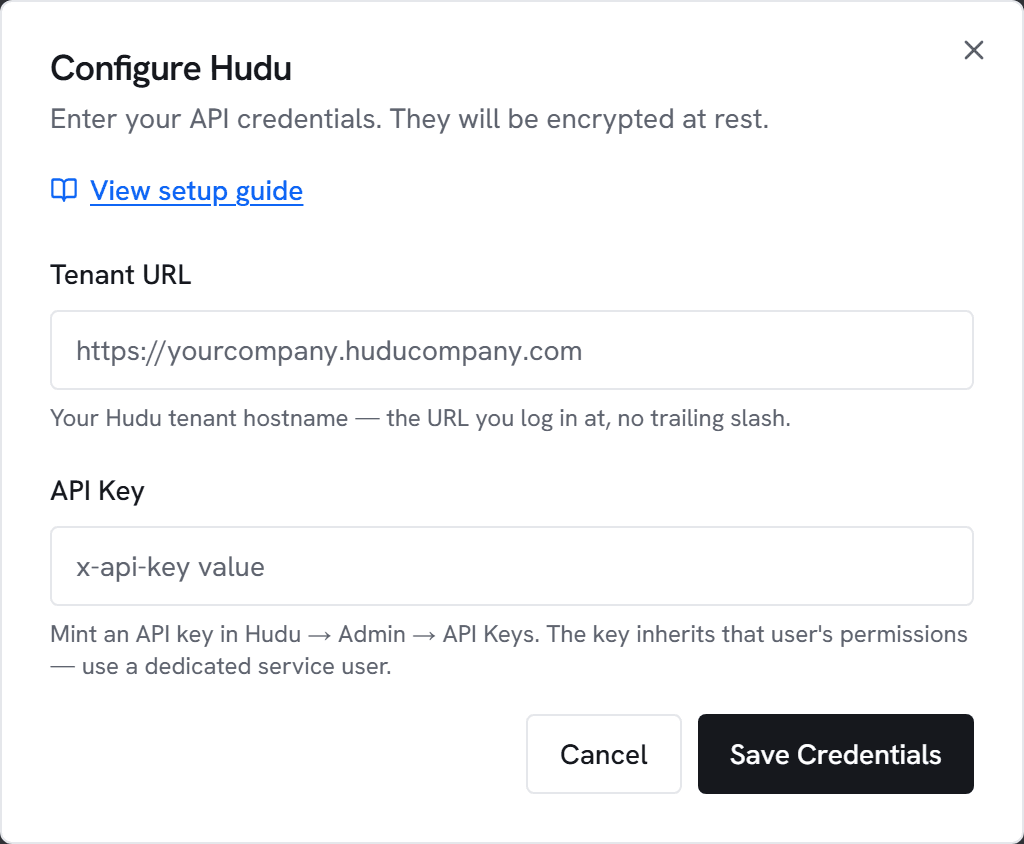
- Go to Admin → Integrations and click Configure on Hudu.
- Paste the tenant URL (no trailing slash, no
/api) and the API key. - Click Test. You should see “Connected to <yourtenant>.huducompany.com” within a few seconds.
- Click Save, then trigger an initial sync.
3. What appears where
- Customer hub → Documentation section: grouped lists of articles and assets for the open customer.
- ⌘K palette on a customer page: titles from that customer’s docs appear alongside customer-name matches. Hitting enter opens the doc in Hudu in a new tab.
- Inline preview: click a doc row to fetch its body on-demand. We never cache the body — every view round-trips to Hudu and lands an entry in the audit log.
Common errors
401 on /api/v1/api_info — The API key is invalid or the user it belongs to has been deactivated. Mint a new key.
403 Forbidden — The minting user lacks read access on one of the resources we sync (Companies, Articles, Asset Layouts, Assets). Grant the missing permission in the Hudu user’s profile and click Test again.
404 — The tenant URL is wrong. Use the URL you log in at (no trailing slash, no /api suffix).